Many popular brands in the US and Europe have a dealer locator on their websites. This map can be used to compile a list of suppliers across different regions, countries, and cities.
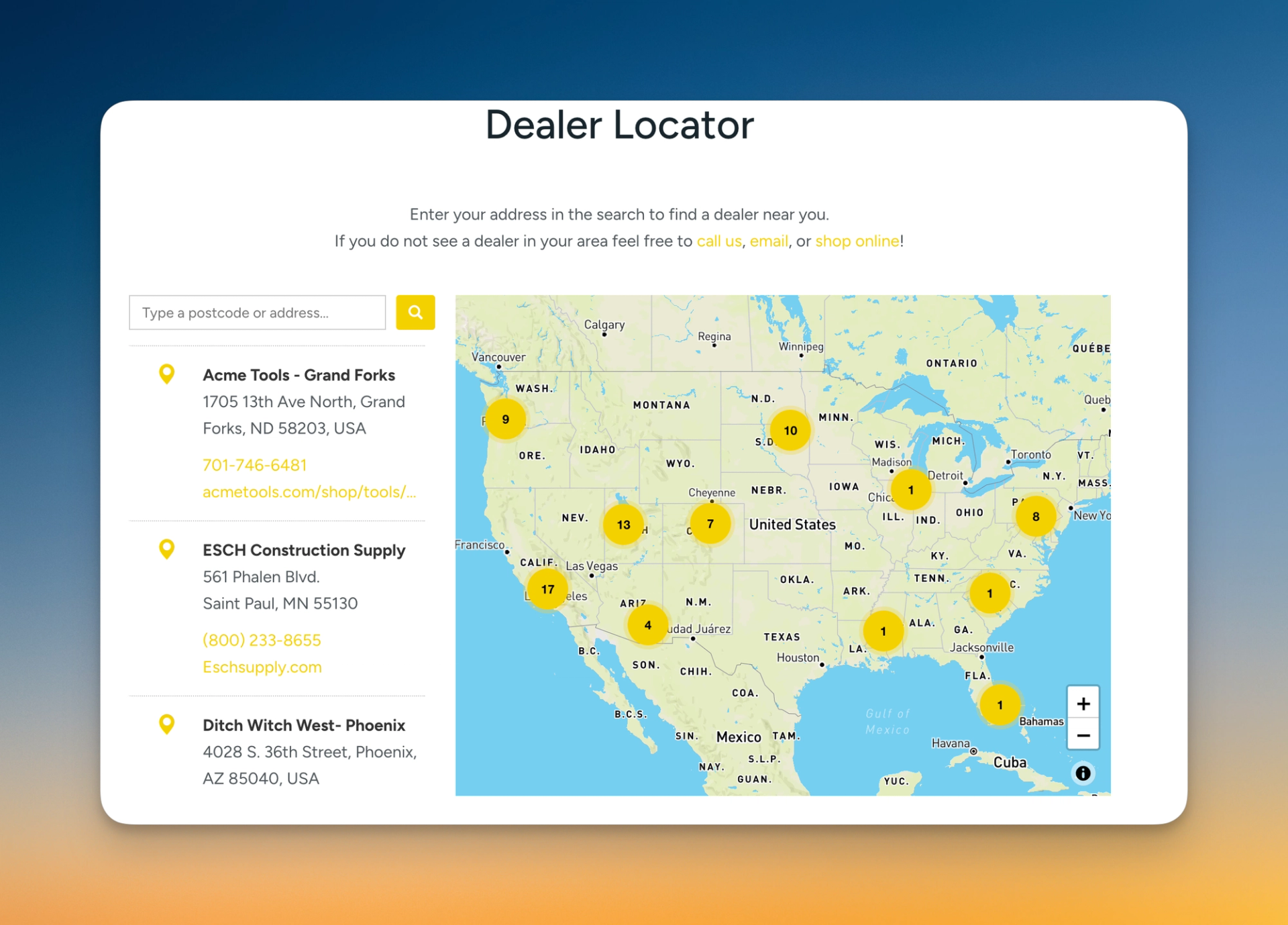
This list can be useful for:
- finding a supplier with the best price
- partnership proposals
- competitive brand analysis
But extracting this data manually is tedious and time-consuming.
In this article, I will show you how to automate this process using Claude and Firecrawl.
How to use Claude and Firecrawl for supplier parsing
Here is how it works:
- Send a link to the dealer page in the claude.ai chat. For this example, I used this brand: hy-lok.eu/distributor-locator
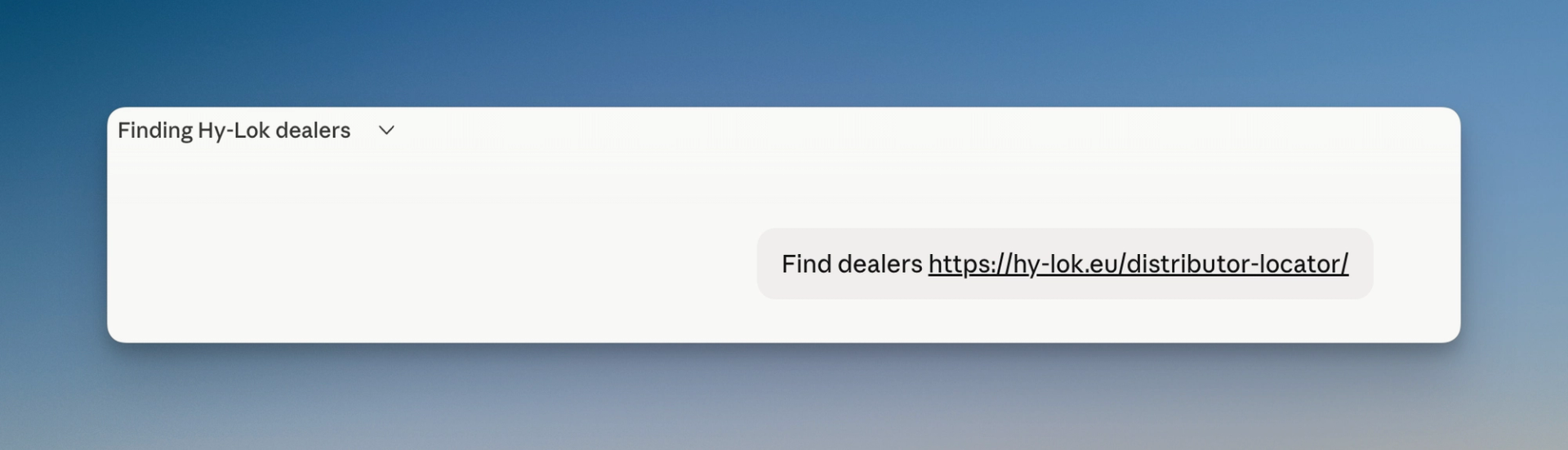
- Once you send the link, Claude will analyze the website and figure out how to extract all the suppliers.
- When Claude finishes, it will compile all the suppliers into an XLSX file.
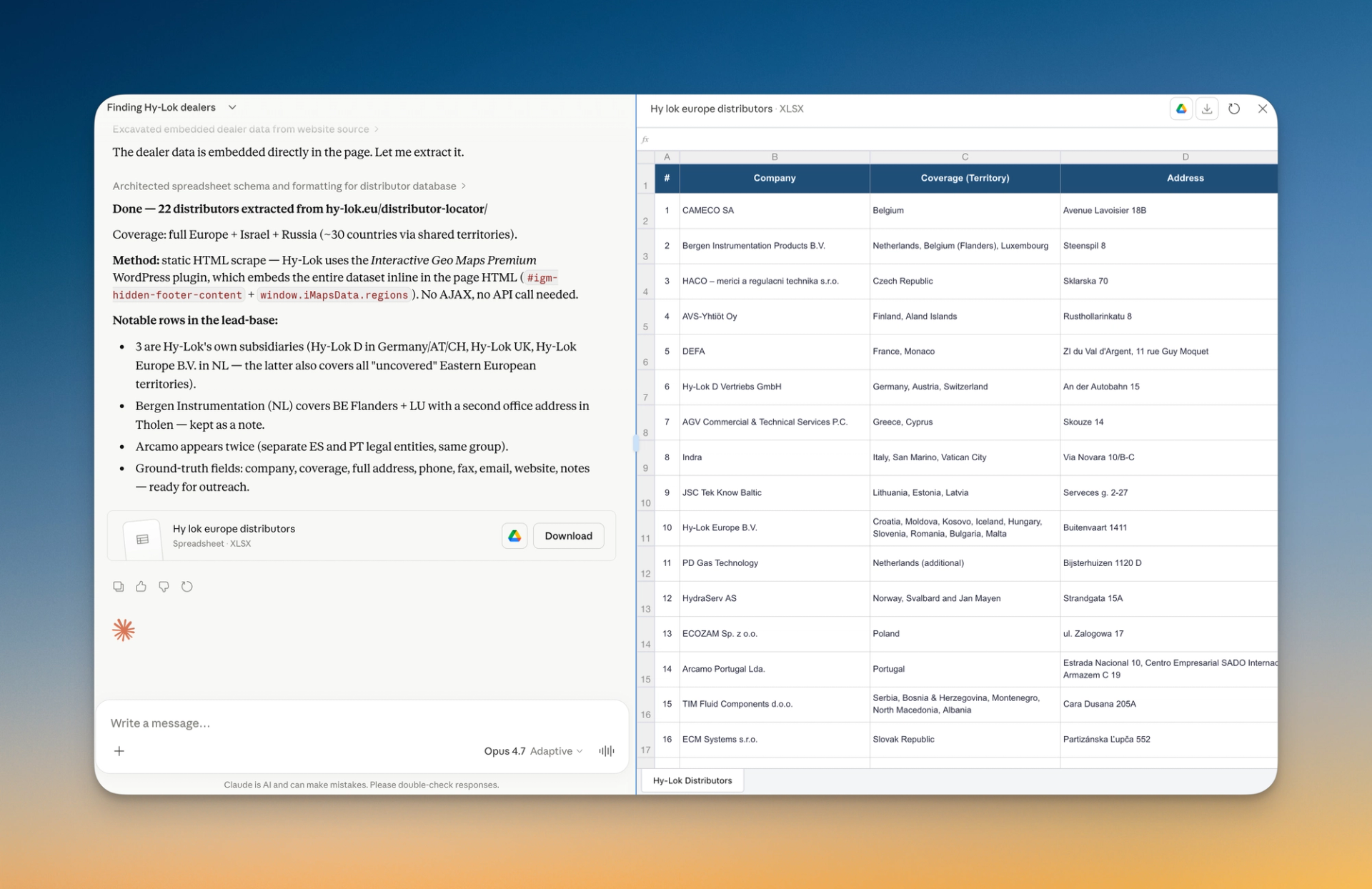
This may take some time depending on the complexity of the website.
Below I will explain how to set up Claude for this workflow.
How to set up this skill
Before getting started, you need to install the Firecrawl MCP and add the skill file with instructions.
Firecrawl is a service that lets you scrape data from web pages and interact with page elements.
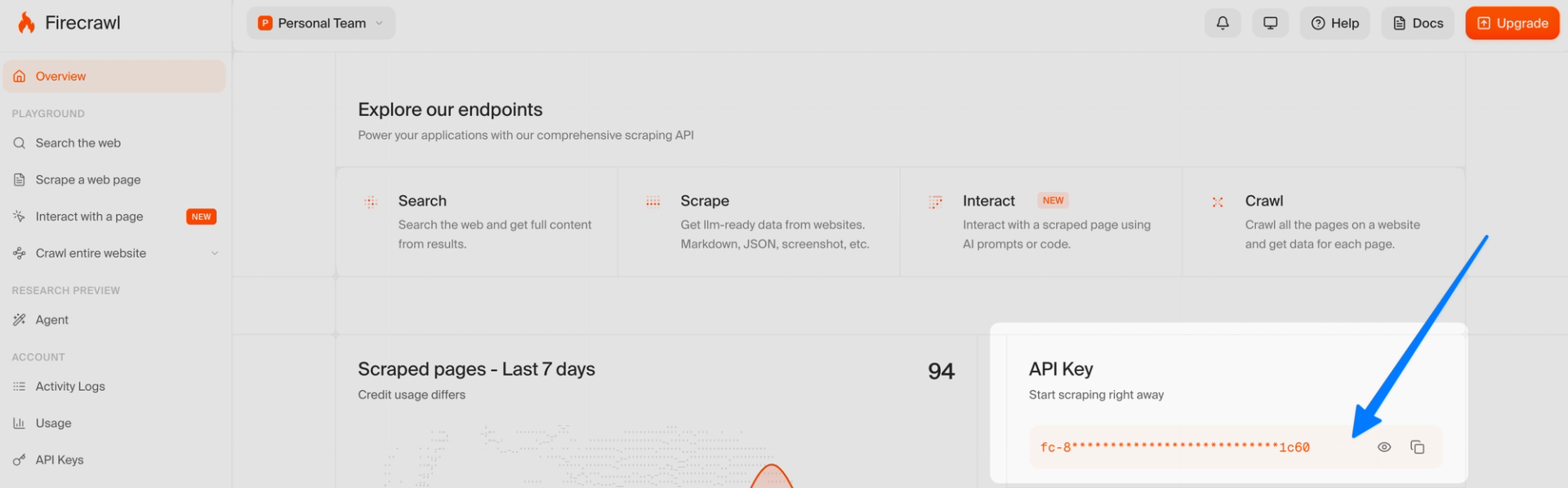
- Sign up at firecrawl.dev — you will receive free credits to test the service.
- Copy your API token and save it.
- Connect Firecrawl MCP to Claude.
How to connect Firecrawl MCP to Claude
- Go to claude.ai and open Settings.
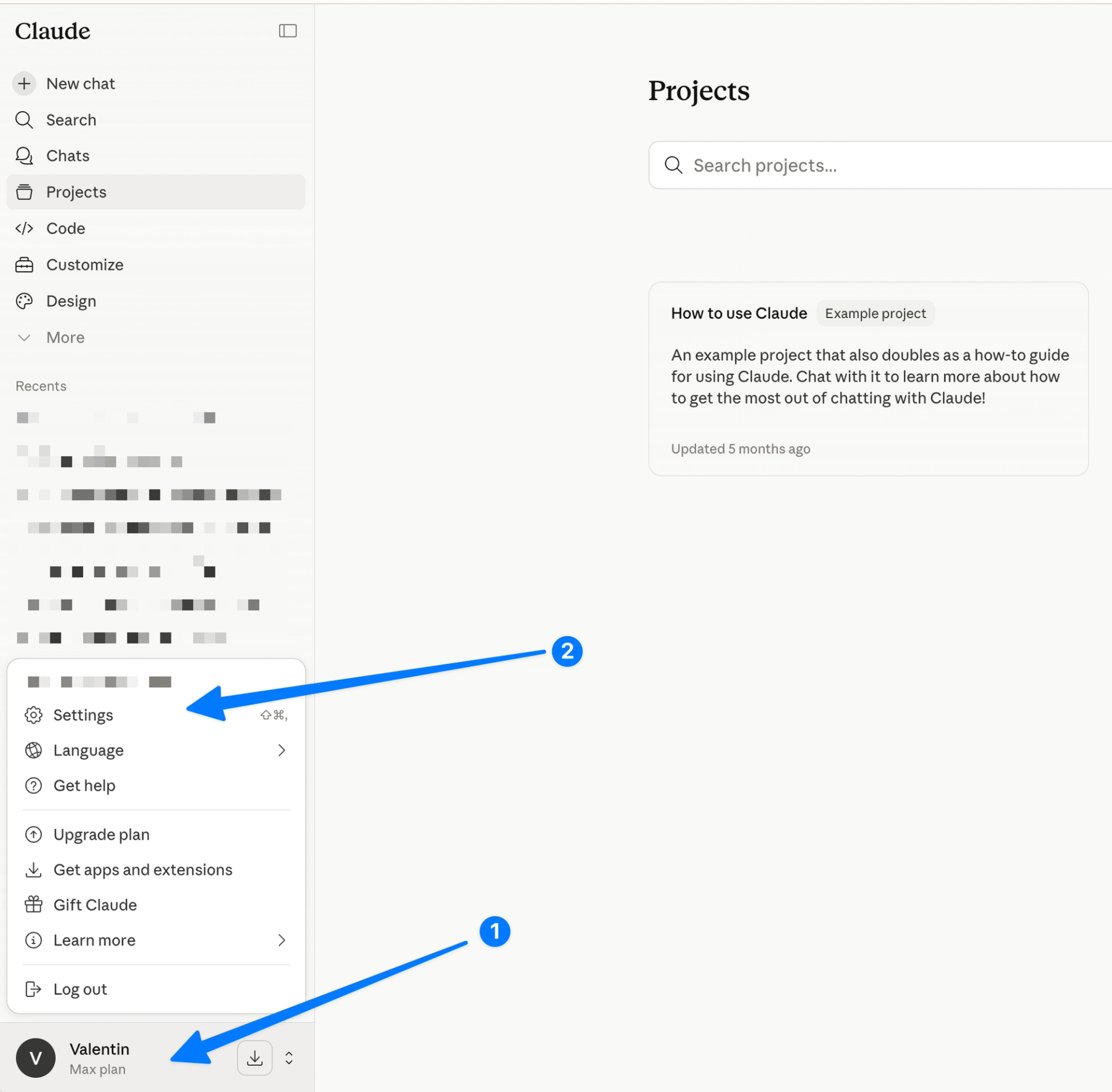
- Add a new Connector.
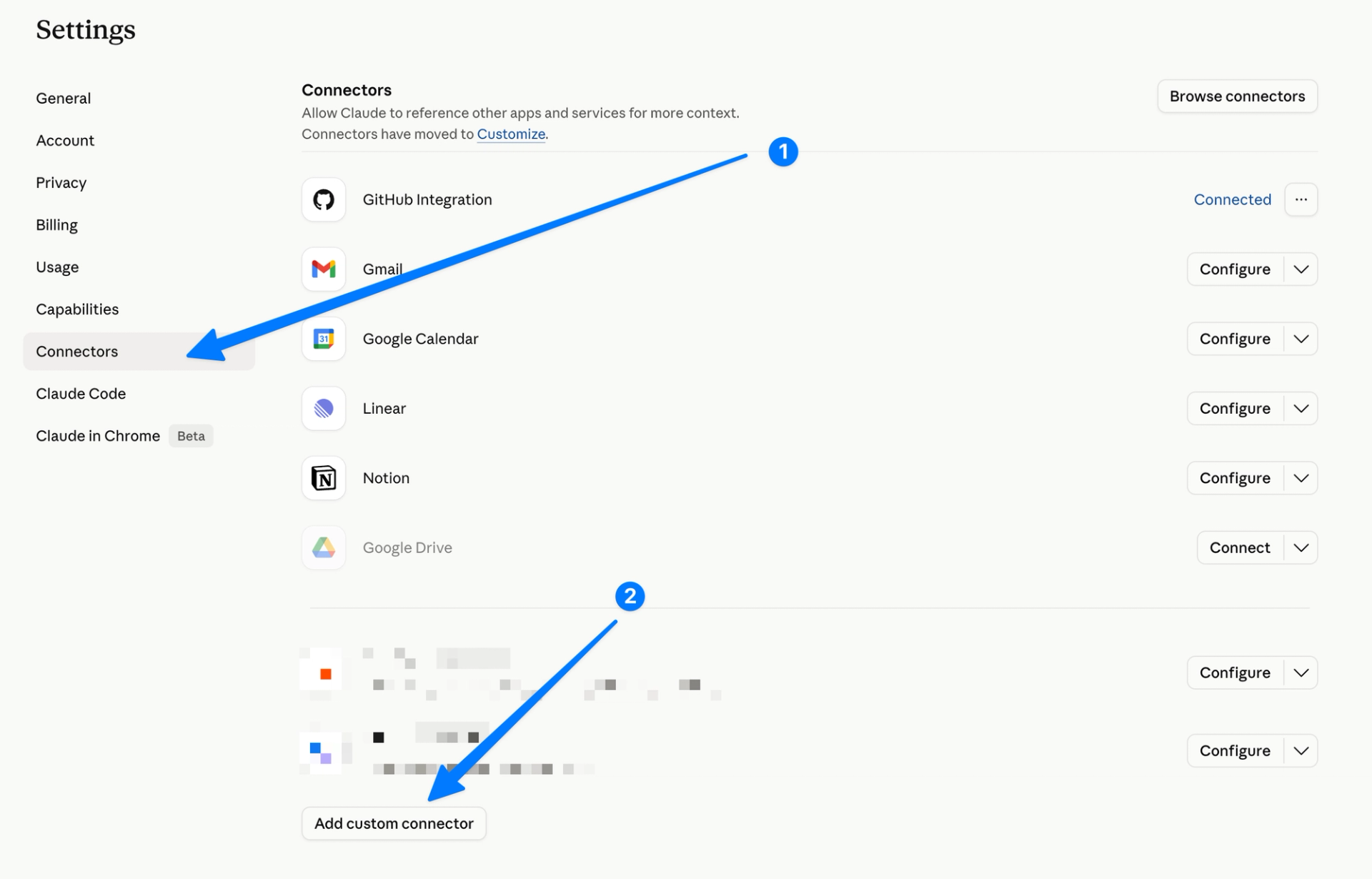
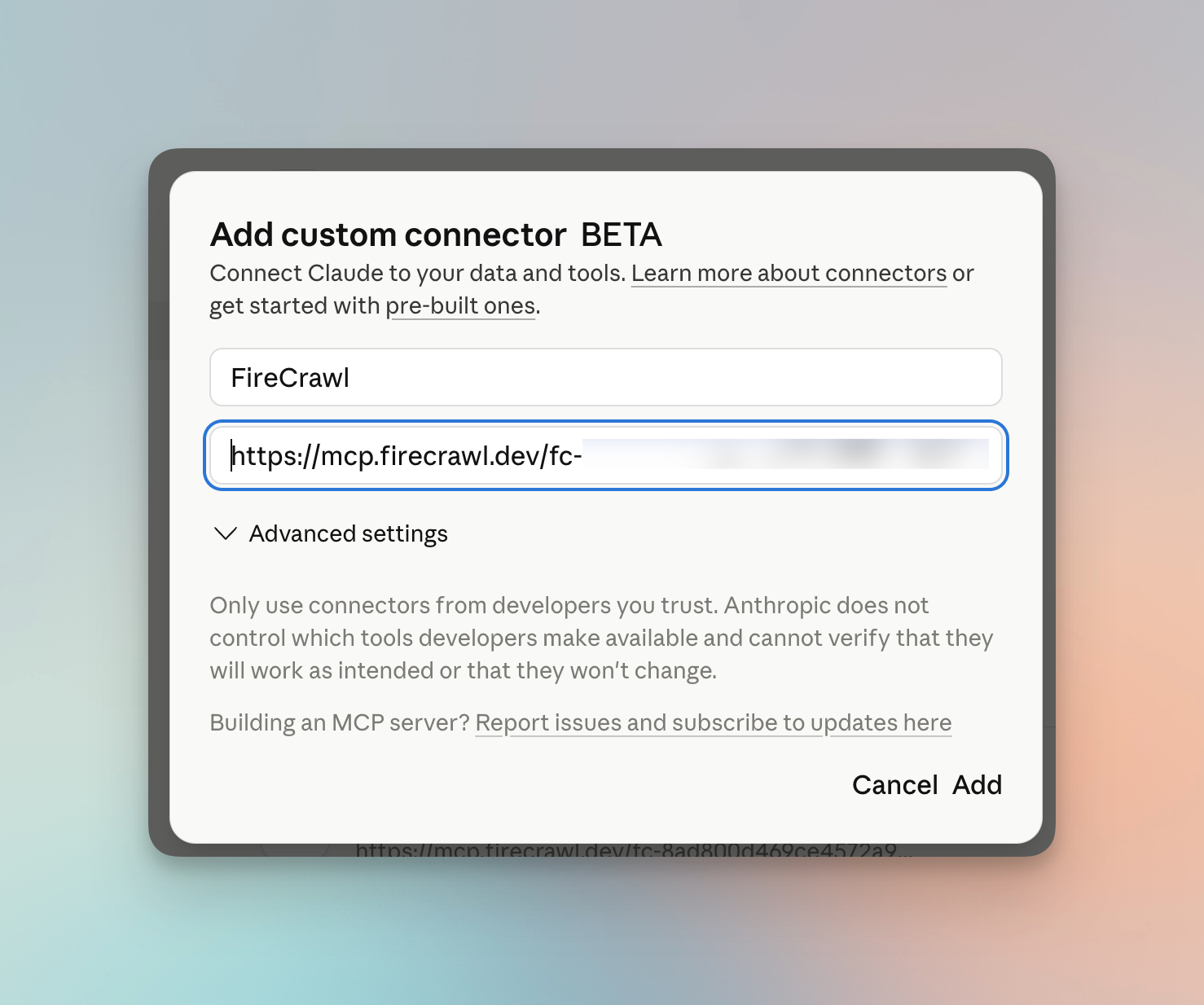
- Take the token you saved and paste it into the URL using this template:
https://mcp.firecrawl.dev/{your-token}/v2/mcp
Paste this string into the URL field.
- Once connected, Firecrawl MCP will appear in your connectors list — you are ready to go.
- Install the skill.
A skill is a file with instructions that guides the AI agent and saves tokens. Download it here:
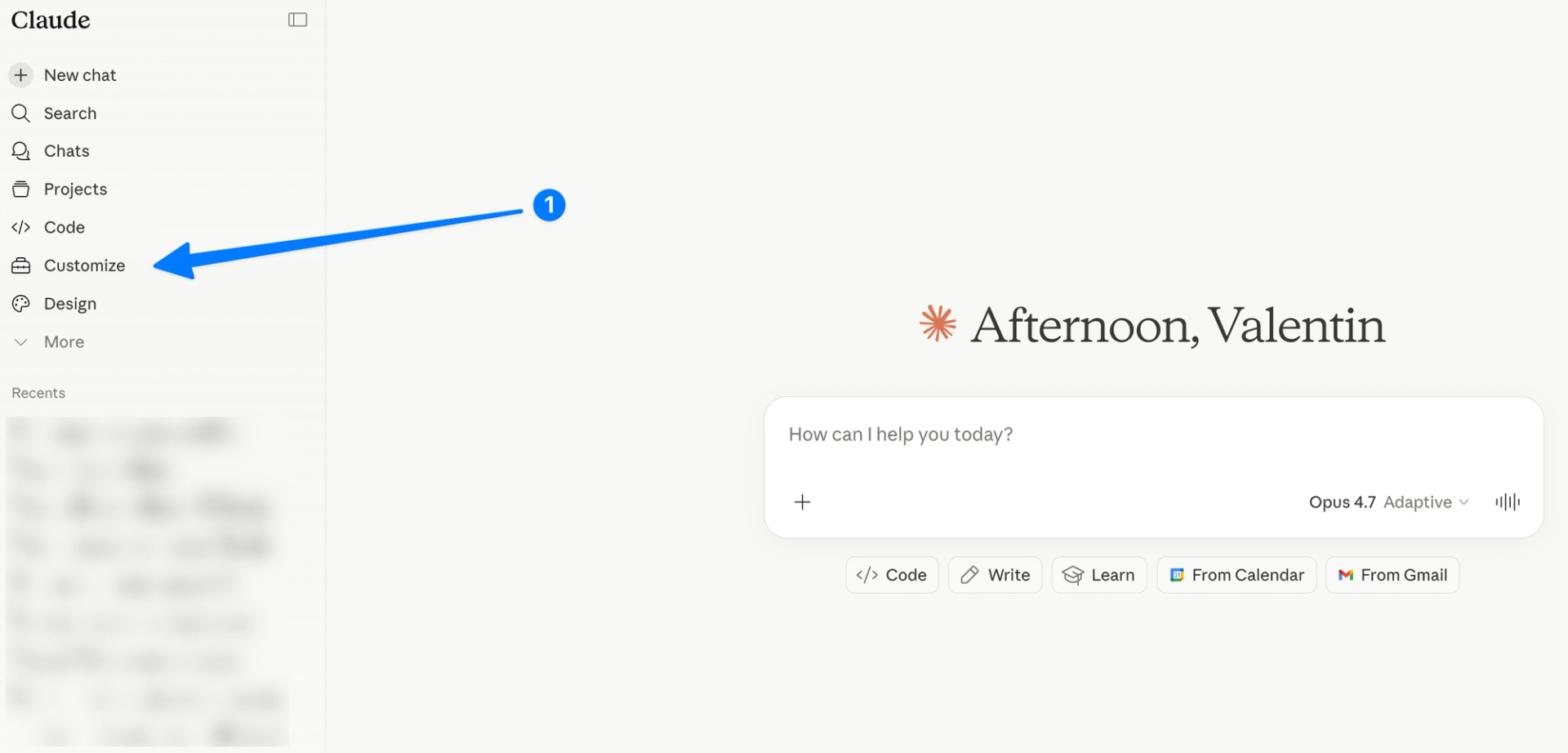
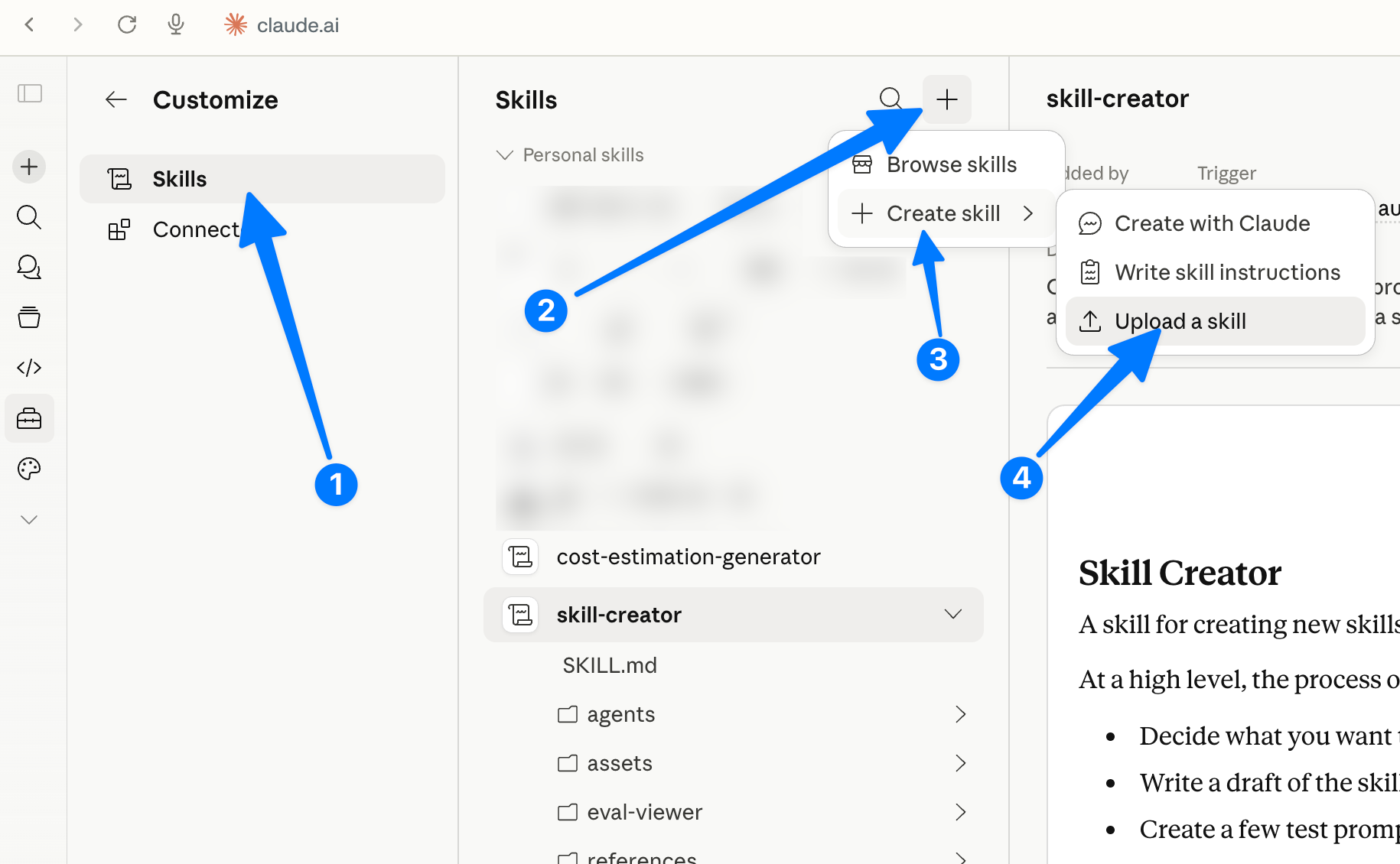
SKILL(8 KB)After downloading, add the file to your skills. Go to the Customize section.
Upload the downloaded file.
That is it! Now create a new chat, send a link to the dealer page, and wait for Claude to parse all the suppliers.